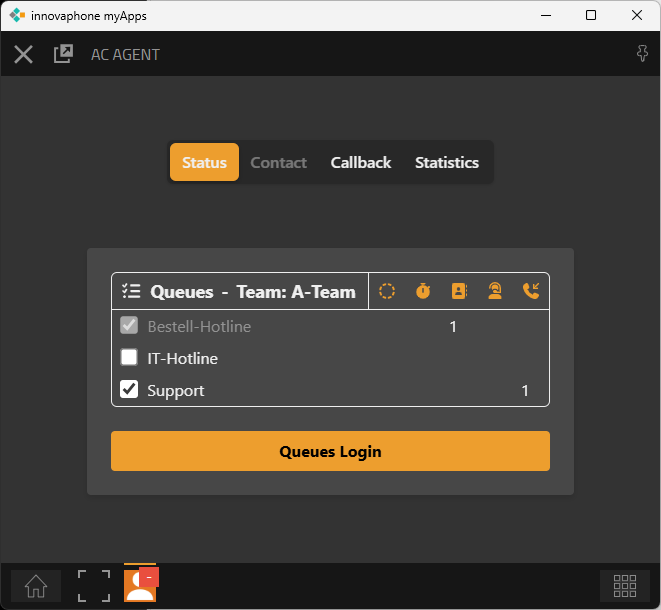
Through this app, the agent actively participates in intelligent call distribution. Even before logging in, they can specifically select the queues they want to participate in routing for. Selecting at least one queue is required for a successful login.
Pre-configurations for queue registrations can be centrally stored via the AC Team Admin App. The agent's associated team is displayed above the queue selection.
After completing the selection, the agent activates call distribution by clicking the “Queues Login” button for the selected queues. If the “Automatic login” option is enabled in the team, the selection is omitted, and the agent automatically participates in routing with the stored pre-configuration after starting the app.
If the presence status in the innovaphone MyApps client is set to “Away” or “Do Not Disturb,” login to the system is prevented, and the following message is displayed in the agent interface:

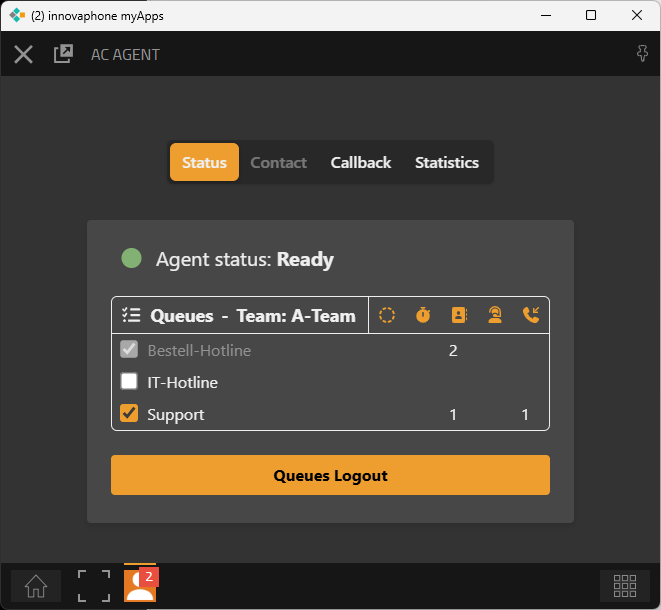
After successful login, the current agent status is displayed above the queue selection area.
Throughout the login session, the agent can change the selected queues at any time, as long as at least one queue remains selected.
Additionally, users can fully log out of the system by clicking the "Queues Logout" button to stop participating in the routing.
Using the presence control, the agent can temporarily log out of or pause automatic call distribution.
To do so, they simply change their presence status in the MyApps client to “Away” or “Do Not Disturb.”
As soon as the agent switches back to “Available,” they will resume participation in automatic call distribution.
If the presence status in the innovaphone MyApps client is changed to “Away” or “Do Not Disturb” while the agent is actively participating in innoACD routing, this will also be reflected in the agent interface, and the routing participation will be automatically deactivated.
It appears as follows:
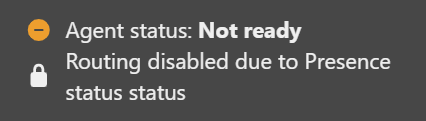
The same applies in the case of a call forwarding type set to “immediate” or “always” on the agent’s side.
Since call forwarding should generally be avoided in call and contact center environments, the agent is automatically set to the “Not Ready” status in such cases as well.
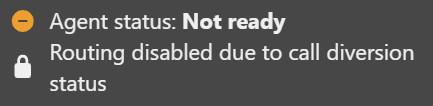
Note: The AC Agent App processes only presence information that is actively set in the PBX.
If an agent is automatically switched to offline status due to prolonged inactivity, this status is not recognized by the app. In such cases, the agent is marked as unavailable only after a subsequent RONA event occurs.

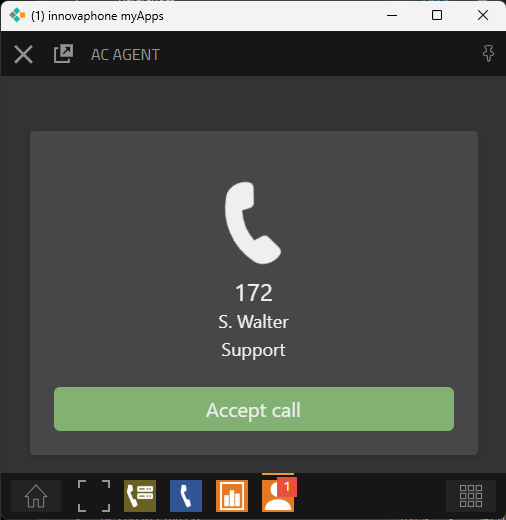
As soon as a call is received for one of the selected queues while the agent is available, it is assigned to the agent.
During the assignment, relevant contact information is displayed below a telephone icon.
If “Reserve” is selected as the transfer strategy in the AC Admin app, the call begins when the agent clicks “Accept Call.”
If the transfer strategy is set to “Direct,” the call is immediately forwarded to the assigned phone device and alerts.
IMPORTANT: If the transfer strategy is set to Direct, calls that are actively declined by the agent are not returned to the waiting queue — they are considered lost.
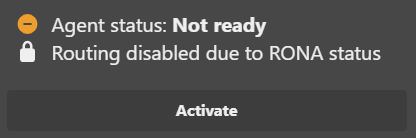
If the call is not accepted within the centrally configured RONA time, a message appears in the agent interface stating “Routing deactivated due to RONA.” The agent’s status is then set to “Not Ready,” preventing further participation in routing until the agent manually reactivates it by clicking the “Activate” button.
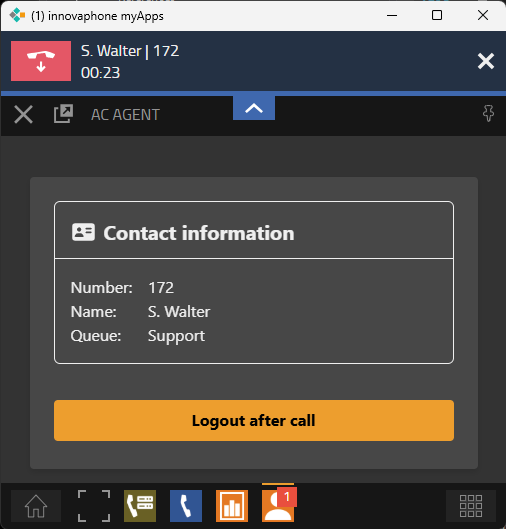
After the call has been accepted, the conversation between the caller and the agent begins. The contact information remains visible throughout the entire duration of the call. During the conversation, other apps within the MyApps client can be used as usual.
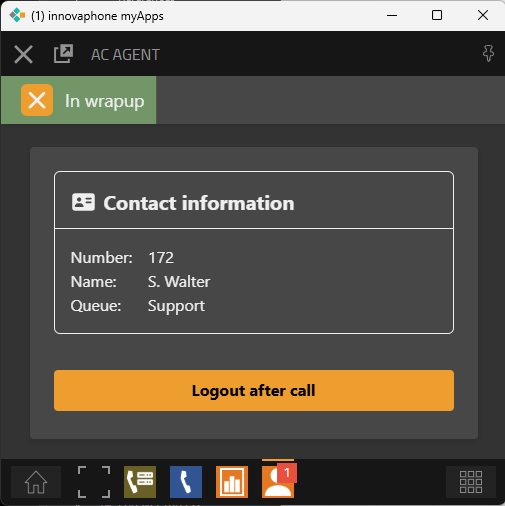
After the call ends, the after-call work (wrap-up) time begins automatically. The remaining time is shown as a green progress bar at the top of the screen.
The wrap-up can be ended early by clicking the yellow-highlighted “X”, allowing the agent to handle the next waiting call sooner.
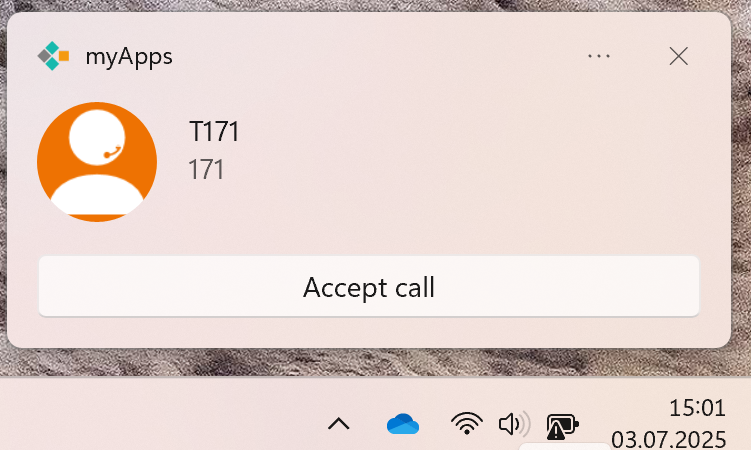
If the globally configured transfer strategy is set to "Reserve", desktop notifications can optionally be displayed in addition to the call signaling within the AC Agent App. This ensures that incoming ACD calls are also visually signaled when the app is minimized or when other applications are in use — in addition to the audible notification. A prerequisite for this feature is that it has been activated in the general myApps settings beforehand.
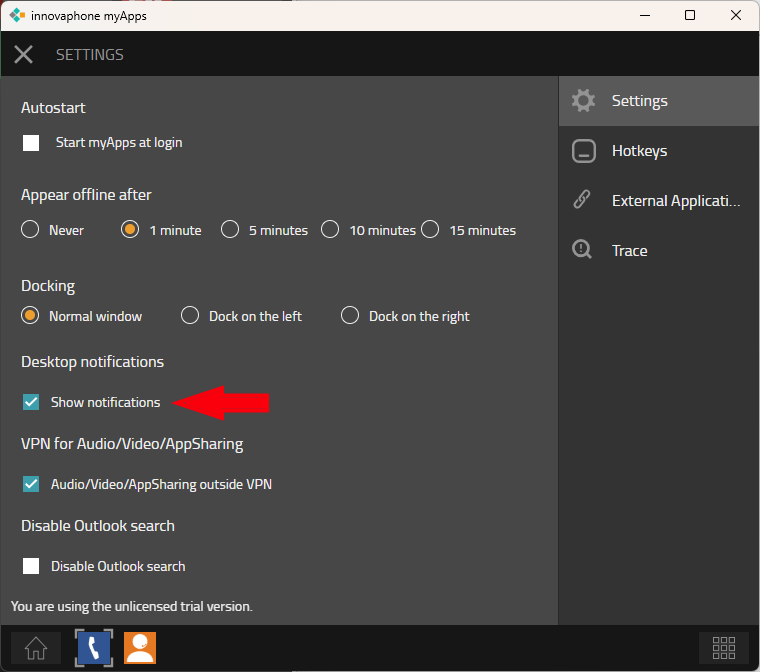
The notification is displayed as a so-called “toast” above the system clock. It contains the AC Agent App icon, the relevant contact information, and a button to accept the call. This allows the user to answer the call directly, without having to actively bring the myApps client or the AC Agent App to the foreground.